Van Wrap Visualizer: See a New Color on Your Own Van Photo
Upload a photo of your own work van, cargo van or camper, describe the wrap color you are considering, and see it on your van before you spend money.
Preview a wrap on my vanSign in with email or Google to render. Most new accounts get 5 free credits (valid 30 days); a standard render uses 1 credit. Free renders carry a WheelAI watermark.
Before and after examples
Each pair is one vehicle photo and the same photo after one Modification Goals request, sent to the image model that Custom Vision uses but with more processing steps than the live tool default, so your own render may be rougher. The full request text sits under each pair.
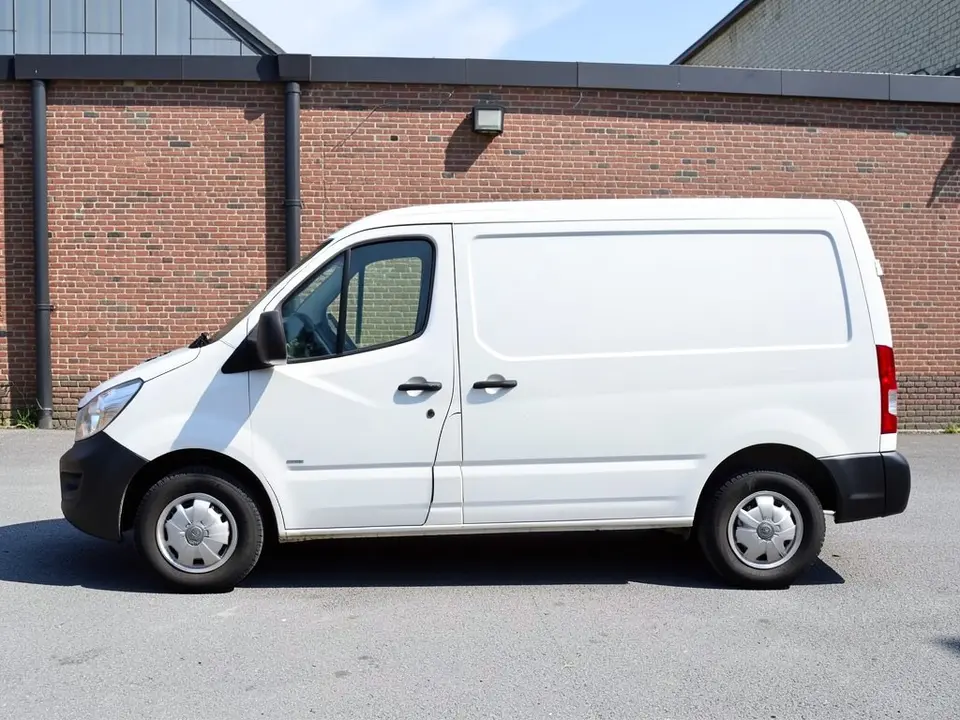
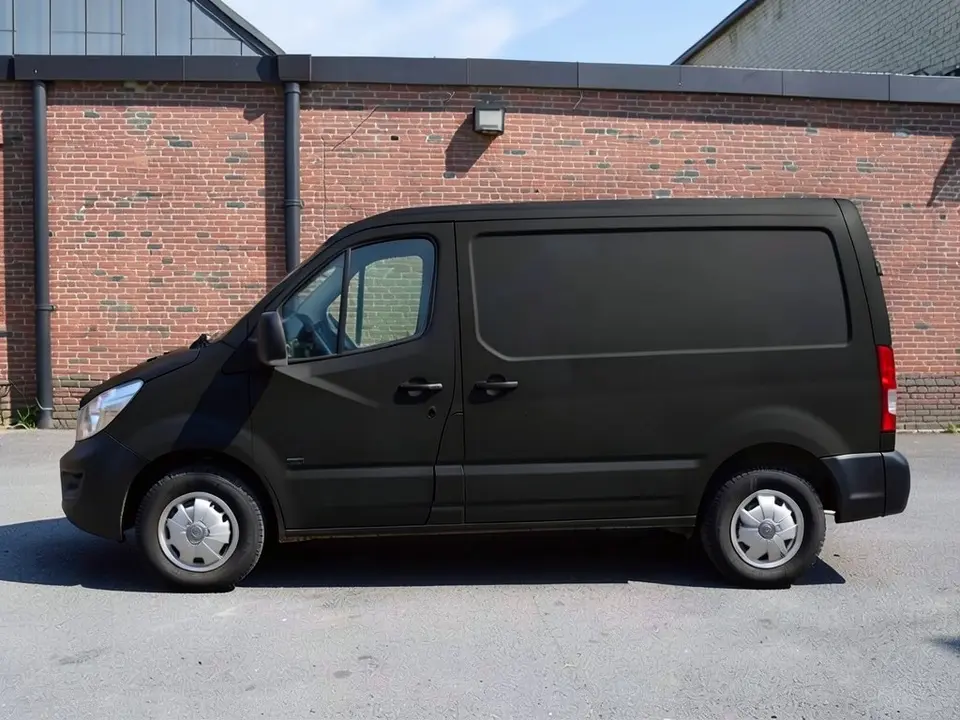
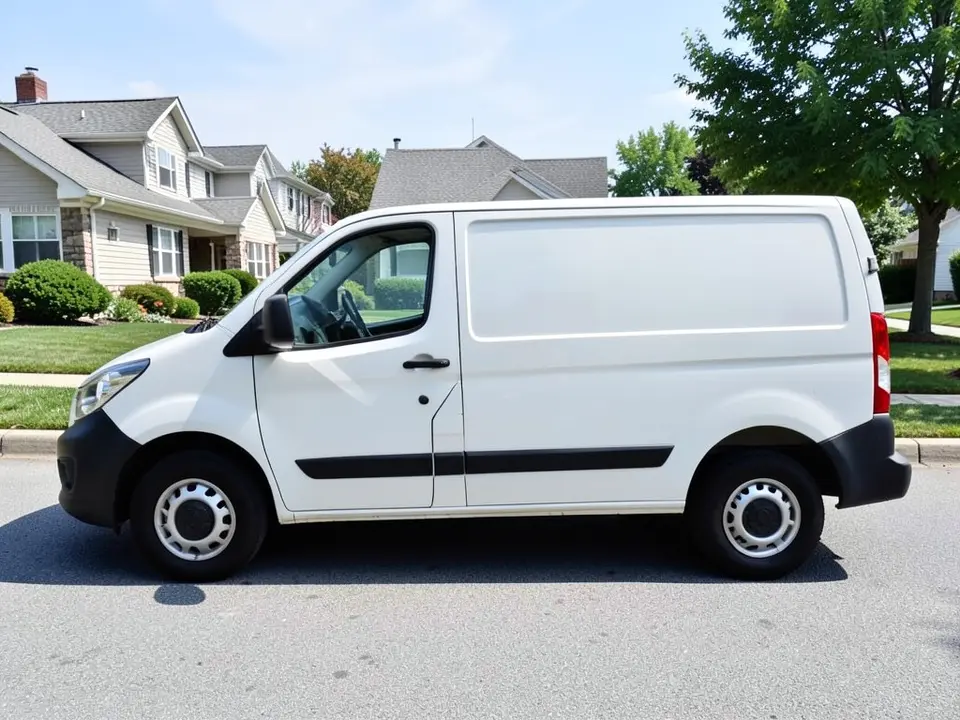
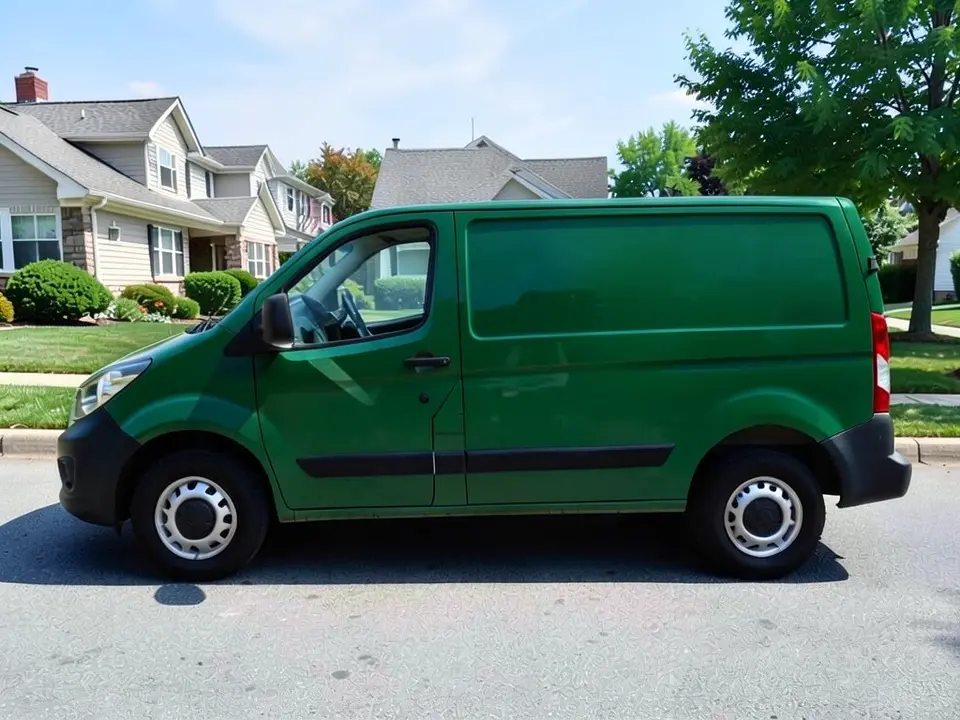
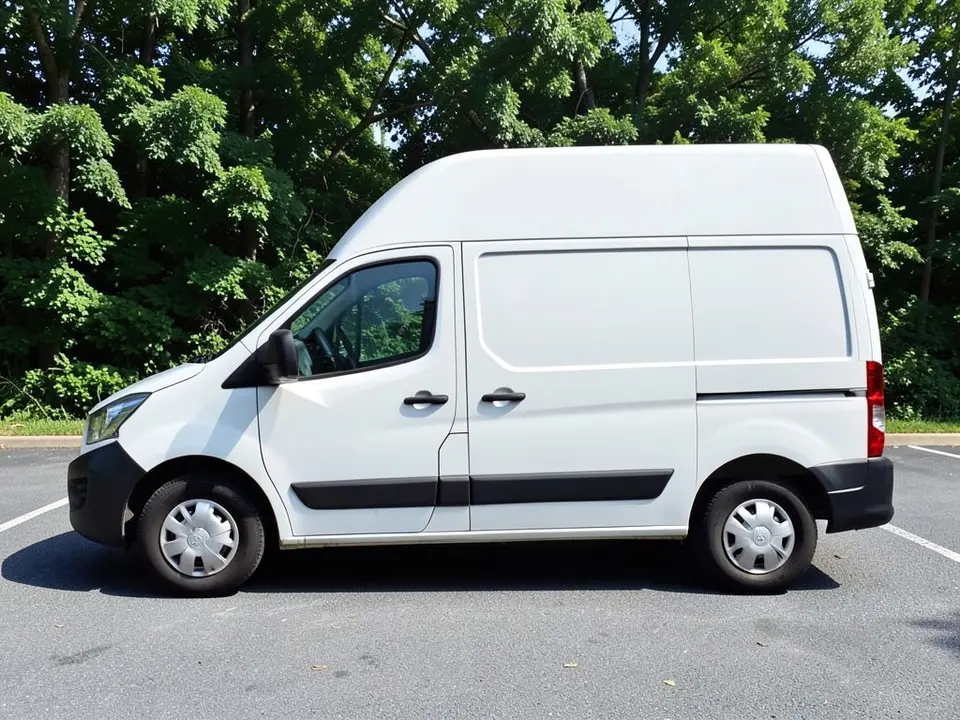
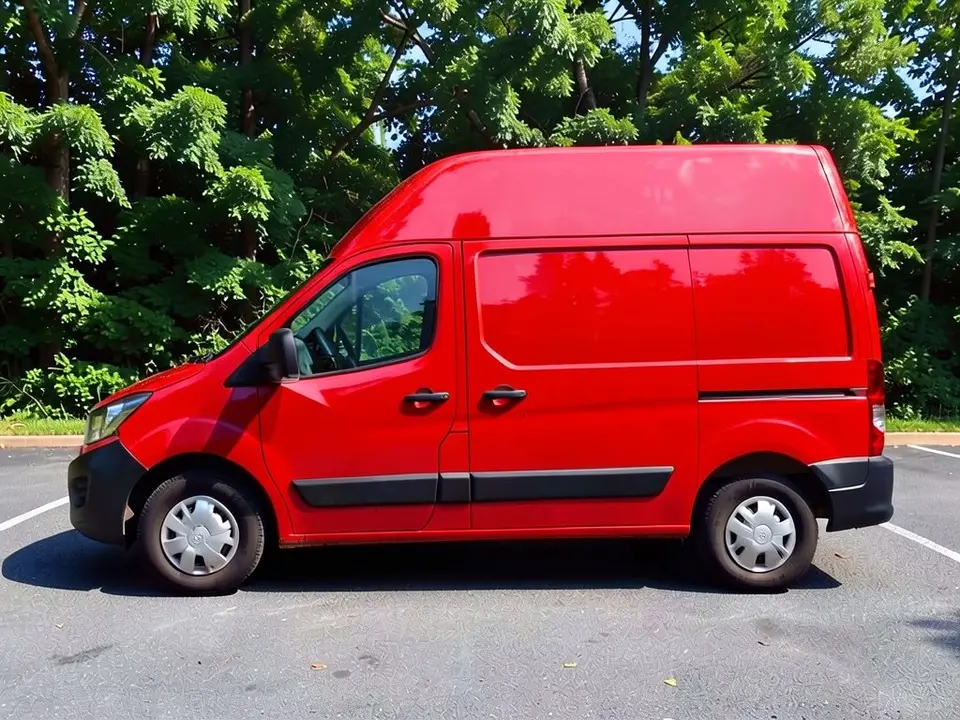
All before and after images are AI-drawn samples from our own image model, not photos of real vans or customer vans. The vans are plain generic cargo and delivery vans drawn side-on, with no lettering or brand logos; any marks on wheel centers are tiny AI artifacts. Under each pair we list which parts of the request worked, which did not, and any change we never asked for.
Try a new color on your own van
A van wrap is a large panel area, so the color matters. A white van is a blank slate, and the right color can make a business look established, or a camper van look like a home. WheelAI redraws your own photo with the color and finish you describe, so you can compare a few options on the same van before you talk to an installer.
The example vans below are AI-drawn generic stand-ins, not photos of real customer vans or a specific make.
How to preview a van wrap
There is no special van mode. The Modifications tool edits any vehicle photo, and its Custom Vision mode takes your own wording.
- 1
Take the photo
Stand square to the side of the van in daylight, far enough back to fit the whole van and a little space around it.
- 2
Open the Modifications tool
Upload your photo and switch to Custom Vision.
- 3
Name the color and what stays
In the Modification Goals box, say the color and finish, and list what must stay the same: windows, wheels, bumpers, mirrors, background and camera angle.
- 4
Compare and refine
Look at the result next to your original. Try one change at a time: a different shade, then a different finish.
Van colors and finishes to compare
Matte or satin black
A dark, quiet look that suits a premium trade or a camper build. In our example, matte black came out very dark, so the body creases were hard to see.
Deep green or blue
Dark colors can look established and calm. Compare two shades on the same photo, because a dark green and a dark teal can look close on a screen.
Bright red, orange or yellow
High-visibility colors stand out in traffic and in a parking lot. Our red example came out bright and glossy.
Keep the white and add a stripe
If you want to keep a white van, ask for a single stripe or a colored lower band. Keep the request simple, because complex patterns are drawn less reliably.
Before you book an installer
- Decide whether you want a full wrap, a partial wrap or only lettering, and ask the installer to quote each.
- Ask for a physical sample of the exact film and look at it outdoors.
- Ask the installer how doors, handles, mirrors and rear doors are handled.
- Have a designer prepare logos and contact details as vector files; the render does not do lettering.
- Check any local rules or insurer requirements on changing a vehicle color or adding commercial signage.
Photo tips
- Use daylight and avoid harsh shadows along the side of the van.
- Stand square to the side and hold the camera at about door-handle height.
- Keep the whole van in the frame with space on every side.
- Park in front of a plain background such as a wall, so the AI can separate the van from the scene.
- Use the same photo for every color idea so the comparisons are fair.
Three Modification Goals to paste
We used these requests for the examples. Copy one into Modification Goals, swap the colors and background words for your own, and delete anything that does not apply.
- Change ONLY the paint color: wrap the van in matte black vinyl instead of white; keep the windows, wheels, tires, bumpers, mirrors, warehouse and the camera angle exactly the same
- Change ONLY the paint color: wrap the van in dark green gloss vinyl instead of white; keep the windows, wheels, tires, bumpers, mirrors, street, houses and the camera angle exactly the same
- Change ONLY the paint color: wrap the van in bright red gloss vinyl instead of white; keep the windows, wheels, tires, bumpers, mirrors, parking lot, trees and the camera angle exactly the same
What the AI does well and where it slips
Whole-body color changes on a plain van usually come out well, and the windows, wheels and bumpers mostly stay put. Shades are approximate and the pavement tends to look more textured after an edit. Logos and lettering are not something to ask this page for. If a render misses, rerun it with shorter, plainer wording.
Frequently asked questions
Is there a free van wrap visualizer that uses my own van photo?
Yes. Sign in with email or Google, upload a side photo of your van, and describe the color and finish you want in the Modification Goals box. Most new accounts get 5 free credits that last 30 days, and a standard render uses 1 credit. Free renders carry a WheelAI watermark. It edits your own picture rather than a stock van.
Can it put my logo, phone number or lettering on the van?
No, not reliably. This page is for the body color and finish. Image models draw text and logos unreliably, and our examples use plain vans with no lettering. Use the render to choose a base color, and have a wrap designer or print shop lay out the logo and contact details.
Which van colors and finishes can I try?
Any color you can describe, in gloss, satin or matte. Our examples show matte black, dark green and bright red on white vans. Name the color and the finish, and say that the windows, wheels and bumpers stay the same.
Does it work on any van?
It edits the vehicle in your photo and never asks for a make or model, so it should work on cargo vans, delivery vans and camper vans. Our examples are AI-drawn generic cargo and delivery vans, so we have not tested a specific make. A sharp daylight side photo of the whole van matters more than the model.
Will the render match the real vinyl color?
Not exactly. A screen shows an approximation, and sunlight, shade and finish all change how a color reads on a real van. In our examples the colors came out close to the request, but they are still pictures. Ask the installer for a physical sample of the exact film and look at it outdoors.
What if the AI changes something I did not ask for?
It can. The image model redraws the whole photo. In our examples the windows, wheels, bumpers and background stayed as asked, but the pavement looked more textured after all three edits. Write what must stay the same, compare the result with your original, and rerun if a part changed.
Does the render show cost, install time or whether wraps are allowed on my vehicle?
No. It shows a look only. It gives no price, no install time and no information on local rules for vehicle appearance, registration or commercial signage. Ask your installer and check your local rules before you commit.
How is this different from a wrap shop visualizer?
Some wrap shops and film makers offer tools where you pick from their product catalog. WheelAI has no catalog: you describe a color and finish in words and see it on your own van photo. Use it to narrow down the idea, then confirm the exact film and price with an installer.
Ready to plan your van?
Compare a few colors and finishes on one photo, then bring your favorite to an installer to confirm the film, the layout and the price.
Preview a wrap on my vanAlso try: Car Wrap Visualizer · Roof Wrap Visualizer · Window Tint Visualizer · Wheel Color Visualizer · Pickup Truck Wrap Visualizer